



Introducing Casket Cap Panels – Beautiful Custom Centerpieces for Your Casket LEARN MORE
Scanning
Tips & Tricks
Memory Portraits strives to produce breathtaking portraits from practically any scanned photograph. However, some guidelines should be followed to ensure proper processing.
Our Artists Need Your Help!
To create the best possible portrait for you, we need your help with the photo you send us. Here are some tips to ensure a great outcome:
Show the Whole Person (Almost): We need a clear image that includes the person’s entire head, shoulders, and most of their torso, down to the waist or just above.
Cropping is Okay: Many photos work well after cropping to focus on the subject. If the cropped image seems too small, don’t worry! You can enlarge it up to 150% or even 200% of its original size.
Scanning Photos: If you’re scanning a TIF file, adjust the resolution to create a final file size between 2 MB and 2.5 MB (megabytes). While JPEGs allow for quick uploads, they often sacrifice quality. To ensure a high-quality portrait, use a high-resolution scan. Aim for 300 dpi for average photos and up to 1200 dpi for very small photos (to preserve detail when enlarged).
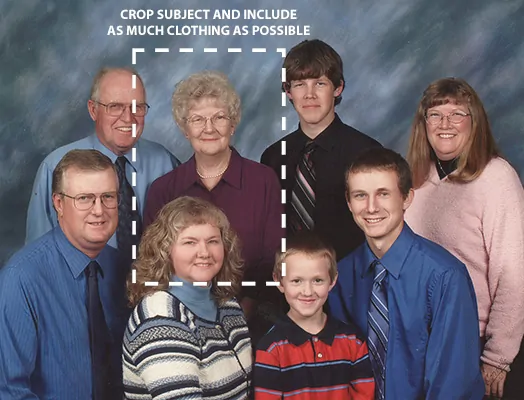
NOTE: In the selection above, it may seem strange to include the head of the woman in front, but this selection allows the artist to have critical visual reference for the subject’s body.
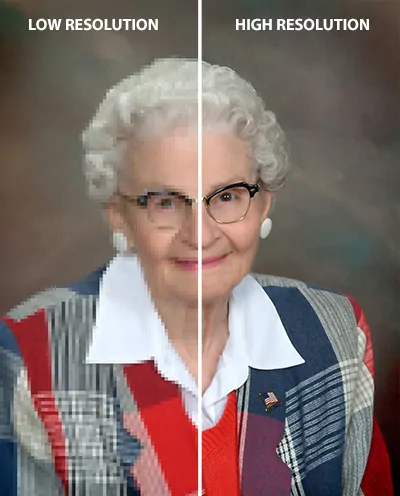
While it’s common to use a small photo for an online obituary, reusing it for a Memory Portrait might not yield the best results. Low-resolution images can appear blurry or pixelated in a larger format.
Quick Scanning Tips:
- Place the photo on the scanner bed and ensure it’s dust-free.
- Use the scanner software to select the area you want to scan.
- Choose a DPI setting of 300 dpi or higher, depending on your photo size (as mentioned earlier).
- Select a file format (ideally TIF for best quality).
- Scan and save the image!
For more detailed instructions, check out the guide below.
Scanning Your Photo is Easy
Scanning your photographs is simple and inexpensive, and once you have digital copies, you can easily use them in a variety of ways
Choose the Perfect Photo
The first step to a stunning portrait is selecting a great photo! Our artists can work wonders, but a clear, high-resolution image creates the best foundation. Here’s what to consider when picking your photo:
Don’t Worry About Minor Imperfections
We can easily fix things like blemishes and remove backgrounds. Sometimes families worry about minor issues in a photo and choose a lower-quality one instead. But a clear picture is always best! Feel free to send multiples for us to reference at no extra charge.
Selfies and Filters Can Be Tricky
While selfies are fun, close-up or angled shots can be unflattering and cut off important areas. Similarly, heavily-filtered photos might make it hard to create a natural-looking portrait. In these cases, consider our Photo Background option where we edit the original photo with your requested corrections.
Lighting and Texture: Aim for Natural Beauty
Good lighting and texture are key! Look for a photo with even lighting, natural skin tones, and minimal shadows or bright spots. Photos with heavy textures can make the final portrait look blurry.
Matching the Canvas: Rectangular is Best
Our portraits come in standard rectangular sizes (5×7, 8×10, 11×14, 16×20). A rectangular photo is ideal, as it minimizes cropping and ensures we can use the entire image effectively. Square or very narrow photos might require cutting out important parts or filling in large empty spaces.
When in Doubt, Send More!
In most cases, the more photo information we have, the better. If there are crucial details missing from your chosen photo, send extras along so we can create the perfect portrait.
Select the Right Scanner for Your Photos
Here’s a breakdown of the three main choices for scanning your photos:
Stand-alone Scanners (Best for Large Batches or Negatives):
- Price range: $100 to $600+
- Ideal for: Scanning a large volume of photos or negatives.
- Features to consider: Speed (faster scanners cost more) and negative scanning capabilities.
- Examples: Fujitsu ScanSnap iX 1500 or Epson WorkForce ES-400
Home Copier/Scanners (Budget-Friendly Option):
- Price range: $100 to $300
- Ideal for: Occasional photo scanning or those looking for a space-saving option.
- Features to consider: Scanning quality and portability (some models are quite compact).
- Example: Doxie Go SE
Smartphone Scanning Apps (Free and Easy for Basic Needs):
- Price: Free (with apps like Google PhotoScan)
- Ideal for: A few photos or those on a tight budget.
- Pros: Convenient and portable.
- Cons: Quality might not be as high as dedicated scanners.
Tip: No matter which method you choose, keeping the scanner glass clean and dry ensures the best possible scans.
Scan Your Photos
Scanning your photos is a great way to preserve precious memories and use them to create a beautiful Memory Portrait. However, to ensure the portrait turns out sharp and detailed, the scanning process needs a little attention. Here’s a breakdown of what to consider when scanning photos for a memory portrait:
File Format:
- TIF: This format is ideal for high-quality scans. If you’re using a TIF file, adjust the resolution to achieve a final file size between 2 and 2.5 megabytes (MB). This balance ensures good quality without creating excessively large files.
- JPEG: While JPEGs are convenient for quick uploads, they often compress the image, leading to a loss of detail. This can be detrimental for a memory portrait, where clarity is crucial. If you don’t have the original TIF file, a high-resolution JPEG scan might be your only option.
Scanning Resolution:
Resolution refers to the amount of detail captured in a scan. It’s measured in dots per inch (dpi). Here’s a breakdown for optimal scans:
- Average Photos: Aim for a resolution of 300 dpi. This is the standard for high-quality images and will produce excellent results for most photos.
- Very Small Photos: If your photo is particularly small, you might need a higher resolution (up to 1200 dpi) to preserve details when the image is enlarged for the portrait.
Additional Tips:
- Clean the Scanner Bed: Before scanning, make sure the scanner bed is free of dust and debris. This helps prevent unwanted marks or scratches from appearing on your digital image.
- Color Depth: Most scanners offer a choice between 24-bit color and lower depths. Choose 24-bit color for the most accurate representation of the original photo.
- Cropping and Editing: You can crop and edit your scanned photos after scanning using image editing software. However, avoid excessive editing or applying filters, as these can alter the original look and feel of the memory.
By following these guidelines, you can ensure your scanned photos are high quality and ready to be transformed into a beautiful memory portrait that captures the essence of your cherished moments.
Photo Resolution vs. Print Quality
This guide shows you the kind of quality you can expect when we’re printing your photos.
Photo Resolution |
Print Size |
|||
| 8×10″ | 11×14″ | 16×20″ | ||
| 1 | 800×600 | Poor | Poor | Poor |
| 2 | 1024×768 | OK | Ok | Poor |
| 3 | 1280×960 | OK | Good | OK |
| 4 | 1536×1180 | Very Good | Good | Ok |
| 5 | 1600×1200 | Very Good | Good | OK |
| 6 | 2048×1536 | Excellent | Very Good | Good |
| 7 | 2240×1680 | Photo Quality | Excellent | Good |
| 8 | 2560×1920 | Photo Quality | Excellent | Very Good |
| 9 | 3032×2008 | Photo Quality | Photo Quality | Excellent |
| 10 | 3072×2304 | Photo Quality | Photo Quality | Excellent |
| 11 | 3264×2448 | Photo Quality | Photo Quality | Photo Quality |
At Memory Portraits, we want to ensure a smooth experience for you and the families you serve. One important factor is copyright protection for photographs used for your portrait.
Simply put, most photos are automatically copyrighted when taken. This means the photographer, as the creator, has control over how the image is used, including creating a Memory Portrait.
To ensure everything runs smoothly, we might ask you to confirm copyright ownership or authorization when submitting photos. It’s a quick step that protects both you and Memory Portraits from any potential issues.
If you have any questions about copyright or using photos, please don’t hesitate to reach out. Our team is happy to help!
Copyright infringements can result in civil and criminal penalties. By checking that you “own the copyright for these photo(s) or I am authorized by the owner to make a photo-to-canvas reproduction” you are agreeing to indemnify Memory Portraits, it’s associates and owners, against any claims by third parties or yourself in relation to the use of any and all materials submitted.